
Introduction
Shoppers now expect to turn a sofa around before they buy it. That is why Google 3D product listings for furniture matter. A 3D model lets a shopper spin the product right inside search results.
The setup sounds technical, but it is not. You need one clean model file, a public web address and one feed field. Still, small mistakes can stop a model from showing.
At Blue Ribbon 3D, we build furniture models for e-commerce. This guide explains the format, the feed steps and the common fixes. It also shows how to plan 3D for a full catalog.
Quick Answer
To prepare furniture for Google’s 3D listings, build a GLB or glTF model, host it at a public URL and add that link to the virtual_model_link field in Merchant Center. Keep the file under 15MB, check it with a glTF validator and allow up to two weeks for review.
Key Takeaways
- Google accepts glTF and GLB files through the virtual_model_link field.
- Google’s help pages name home goods as a supported category, and furniture belongs there.
- Aim for about 10MB per file, and never go above 15MB.
- New models can take up to two weeks to show, so plan ahead.
- Nobody can promise a listing, so build the model right and check it often.
At a Glance: Setup in Six Steps
| Step | What you do | Key detail |
|---|---|---|
| 1. Check fit | Confirm category, market and account | Home goods; supported markets; Merchant Center |
| 2. Build | Create a GLB or glTF model | Aim for 10MB; never above 15MB |
| 3. Validate | Run the file through a glTF validator | Fix every warning and error |
| 4. Host | Upload to a public, crawlable URL | Must start with http:// or https:// |
| 5. Add link | Enter the URL in virtual_model_link | Maximum 2,000 characters |
| 6. Wait and check | Allow time for review | Up to two weeks |
What Are Google 3D Product Listings for Furniture?
A 3D listing shows an interactive model of your product in Google’s shopping results. Shoppers can rotate the piece and look at it from every side. On some free listings, they can also use a view-in-your-space option to place it in a room.
There are two kinds of 3D content. First, you can supply your own model. Second, Google can build a 360-degree spin from your photos with AI. Google labels those spins as generated by Google.
However, the difference matters for furniture. According to Google’s help page, the AI-built spins do not support view-in-your-space. Only models that you provide as glTF or GLB files can offer that option, and they credit your brand.
So if you want shoppers to try a sofa in their living room, you need your own accurate model.
Why does this matter for sales? A 3D view answers questions that photos cannot, such as how deep the seat is or how the arms curve. As a result, shoppers feel surer before they click, and fewer of them need to ask for help.
Does Your Furniture Qualify for 3D Listings?
Before you spend time on models, check four basics, because each one can block a launch.
- Category: Google says the virtual_model_link field works for home goods and shoes. Furniture is a home goods product, but confirm that your products sit in that category in your feed.
- Market: Google’s main 3D and AR page says the experience covers only products sold in the US, Canada, Australia, Japan and India.
- Account: You need a Merchant Center account to take part. Manufacturers can also use Manufacturer Center.
- Policies: Your product must follow Google’s Merchant Center policies, like any other listing.
One caution applies here. Another Google help page describes the market more narrowly, as products sold in the US. Because Google’s pages differ, check both before you plan a launch outside the US.
What File Format and Size Does Google Expect?
Google’s help pages list a small set of rules. Use this table as a quick reference, and then confirm it on the live page.
| Item | What Google says |
|---|---|
| File type | glTF (.gltf) or GLB (.glb) |
| File size | Recommended 10MB; should not exceed 15MB |
| Textures | 4K has the broadest mobile support; 8K is the largest Google can display on mobile |
| URL | Starts with http:// or https://; up to 2,000 characters |
| Access | Google must be able to crawl the file, so check robots.txt |
| Validation | Check the file with a glTF validator and fix all warnings and errors |
However, the table leaves out some points. These pages do not set a polygon count or an orientation rule. For those points, Google points readers to its AR file requirements. Therefore, read that page before you finalize your models.
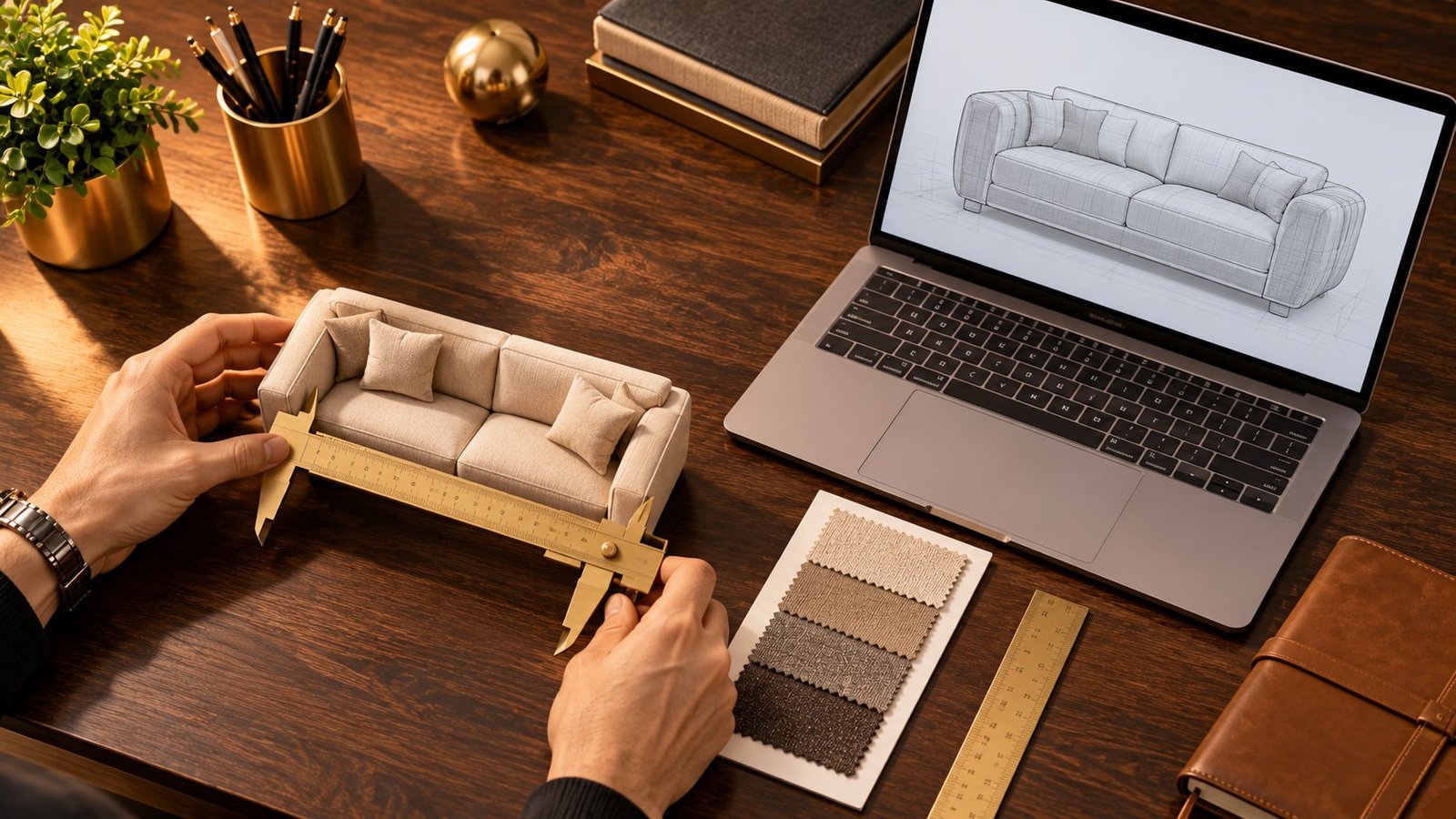
How Do You Build a Furniture GLB Model That Works?
Strong furniture GLB models start with clean geometry. The model must look right and stay light. Those two goals pull in opposite directions, so balance them early.
First, follow these practical habits. They come from standard 3D practice, not from a Google rule.
- Match the real product: use true dimensions, so scale looks right in a room.
- Keep geometry efficient: remove hidden faces and extra detail, because no shopper will see them.
- Size textures wisely: use 4K only where the detail matters, such as fabric weave.
- Check materials: make sure the leather, wood and metal look like the real finish.
- Test on a phone: most shoppers will view the model on a phone, so test there first.
Also, accuracy comes first. If a beautiful model does not match the real sofa, it will lead to returns and unhappy reviews.
How Do You Add the Model to Your Merchant Center Feed?
The feed step is short. Here, Google Merchant Center 3D support relies on one attribute, so follow the order below.
- Create or order your GLB or glTF model.
- Then upload the file to a public web address that Google can crawl.
- Next, confirm that your Merchant Center account is active.
- After that, add the file’s URL to the virtual_model_link attribute in your product feed.
- If you are the manufacturer, you can also supply models through Manufacturer Center. Link both accounts so the models sync.
- Finally, update the feed and wait for Google to review the file.
Google’s help page also shows a structured data option. It links a Product to a 3D model by using the 3DModel type and a content URL. Ask your developer whether that route suits your site.
When Will Your 3D Model Show Up?
Be patient. Google reviews models before they appear in search. Its help pages say new models may start showing within two weeks after you add them to your feed.
If a model fails the requirements, Google can disapprove the product. In that case, Merchant Center notifies you, so watch your diagnostics after each feed update.
However, ads work a little differently. According to Google, 3D assets can appear in Shopping ads through Performance Max or Standard Shopping campaigns. However, the view-in-your-space option does not appear in Shopping ads. It shows only on eligible free listings.
Still, nothing here guarantees a 3D badge. Google decides what to show. Your job is to meet the requirements and keep the data clean.
How Do You Fix a Missing 3D Badge?
If the badge does not appear, work through this list from top to bottom.
- URL: open it in a private browser window, because it must load without a login.
- Crawl access: make sure robots.txt does not block the file, since Google must read it.
- Category: confirm that the product sits under home goods.
- Market: confirm that you sell in a supported country.
- File: run the validator again, and confirm that the size stays under 15MB.
- Listing type: if you see a 3D badge without a view-in-your-space button, it usually means a Shopping ad.
- Timing: allow the full two weeks before you assume something is wrong.
How Do You Plan 3D Models for a Whole Catalog?
Most brands cannot model every product at once. Instead, start with the pieces that earn the most, and expand in waves.
| Wave | Which products | Why |
|---|---|---|
| Wave 1 | Bestsellers and high-return items | They carry the most traffic and the most doubt |
| Wave 2 | Large pieces, such as sofas and beds | Shoppers want to judge scale before they buy |
| Wave 3 | Colour and fabric variants | Reuse the base model with new materials |
| Wave 4 | The rest of the catalog | Fill in as budget and time allow |
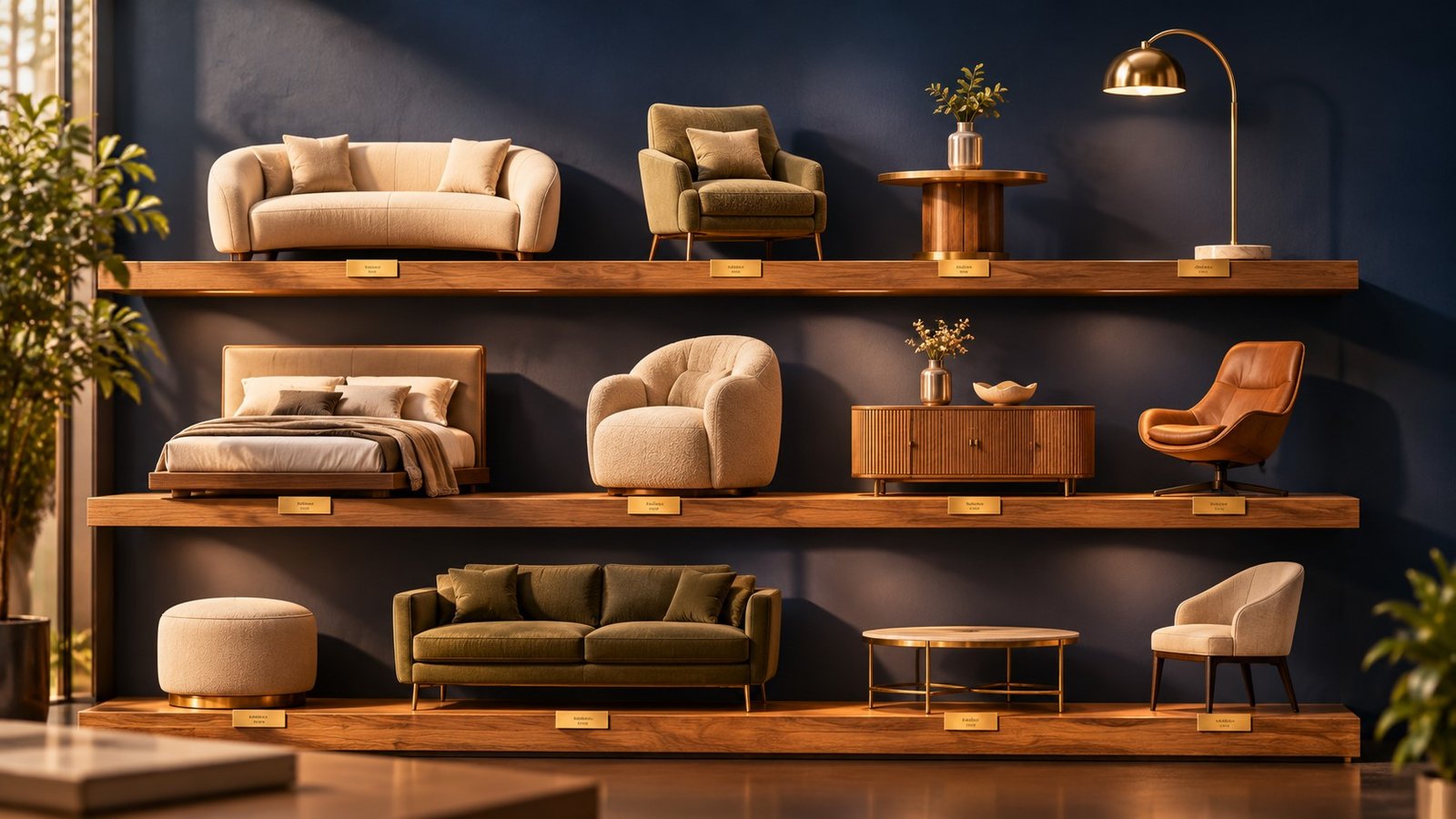
Reuse is the key to value. One accurate model can power the 3D listing, a 360-degree view, product images and AR. As a result, the cost spreads across many uses.
Many brands also bring in 3D furniture rendering services for the first wave. That way, the in-house team can keep running the store while the models get built.
Also, keep a simple tracker. List each product, its model status, its file size and its hosted URL. This habit saves hours when you update the feed.
What Mistakes Should You Avoid?
- Oversized files: heavy models load slowly, so they may break the 15MB limit.
- Private links: a URL behind a login will never work, because Google cannot open it.
- Blocked crawling: a robots.txt rule can hide the file, so Google never sees it.
- Inaccurate models: if a model differs from the real piece, it invites returns.
- Wrong category: remember that the field supports home goods and shoes only.
- Big promises: never tell your team that 3D guarantees rankings or sales, because no one can promise that.
Most of these errors are easy to prevent. So a short checklist and one test file will catch nearly all of them before launch, and you will avoid costly rework later.
Frequently Asked Questions
What file format does Google use for 3D product listings?
Google accepts glTF (.gltf) and GLB (.glb) files. You add the file’s public URL to the virtual_model_link attribute in your Merchant Center feed.
How big can a 3D furniture model be?
Google recommends about 10MB and says the file should not exceed 15MB. Smaller files also load faster on phones, so keep them light.
Does Google support 3D listings for furniture?
Google’s help pages name home goods as a supported category, and furniture is a home goods product. Check that your products sit in that category and that you sell in a supported market.
Which countries support Google 3D and AR listings?
Google’s main 3D and AR help page lists the US, Canada, Australia, Japan and India. Another help page mentions the US only, so check both pages for your market.
How long does it take for a 3D model to appear?
Google says new models may start showing within two weeks after you add them to your feed. The final decision on what appears belongs to Google, so no one can promise a date.
Can I show 3D models in Shopping ads?
Google says 3D assets can serve in Performance Max or Standard Shopping campaigns. The view-in-your-space option is not available in Shopping ads.
Can Google make 3D spins from my photos?
Yes, Google can create 360-degree spins with AI and label them as generated by Google. These spins do not support view-in-your-space, so supply your own model if you want that option.
Do I need a 3D artist to prepare furniture models?
You need accurate models that meet Google’s file rules. Many brands work with a 3D studio, because clean geometry, real scale and correct materials take skill.
Conclusion
Google’s 3D listings give furniture brands a new way to show products. The path is clear: build an accurate GLB model, host it publicly and add the link to your feed.
Start with your bestsellers. Next, validate every file and keep each one under the size limit. Then monitor your Merchant Center diagnostics and refresh your files when Google updates its rules.
Need accurate furniture models? Blue Ribbon 3D builds photoreal 3D models, 360° views and AR-ready files from your CAD or reference images.
Get Your Free Sample
Request a free sample 3D model for one of your products. Contact us here to get started.
Related posts

Furniture Product Page Checklist for Black Friday 2026
Introduction Black Friday 2026 lands on November 27, and Cyber Monday follows on November 30. That gi …
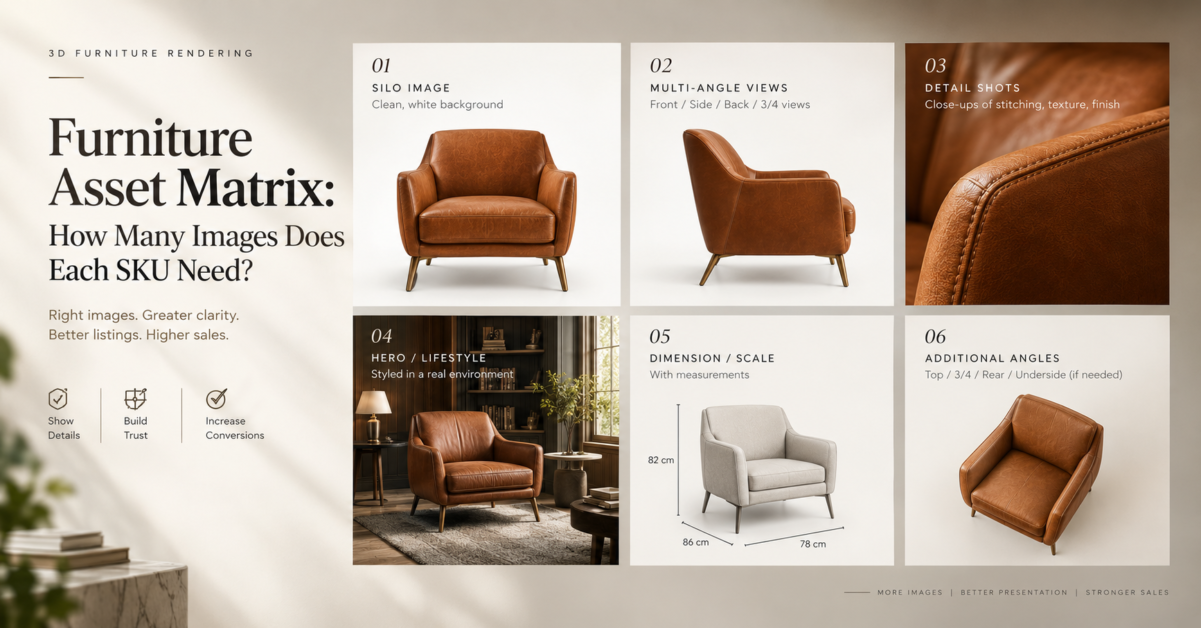
Furniture Asset Matrix: How Many Images Does Each SKU Need?
Introduction Every furniture brand eventually asks the same question: how many images does each produ …